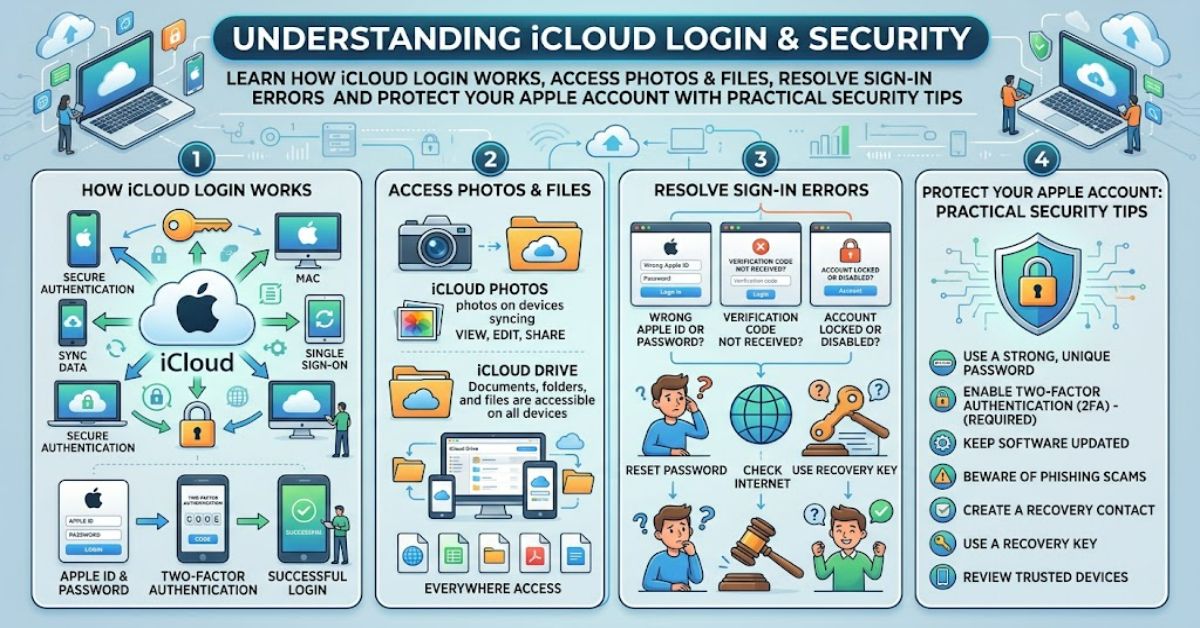
An iCloud login gives you access to Apple’s online services, including Photos, Mail, Notes, Drive and other information stored in your iCloud account. You can sign in through a web browser or use your Apple Account on an iPhone, iPad or Mac to access supported services and synchronise information across devices.
To get started, open Apple’s official iCloud website, enter the email address or phone number associated with your Apple Account, and follow the authentication instructions. Depending on your security settings, Apple may ask you to enter a verification code or confirm the sign-in on a trusted device.
iCloud is designed to keep selected information available across compatible devices. For example, a photograph taken on an iPhone may appear on another device when iCloud Photos is enabled and synchronisation has completed. Similarly, documents saved in iCloud Drive can be accessed from supported devices signed in to the same account.
However, signing in does not automatically mean every service or file will be available. Access depends on your account settings, available storage, internet connection, device compatibility and the services you use.
It is also important to distinguish between an Apple Account and the iCloud services connected to it. Your Apple Account is the identity used to access Apple’s services, while iCloud provides online storage and synchronisation features. Knowing this difference makes it easier to resolve login problems without changing settings unnecessarily.
This guide explains how to sign in safely, choose the right access method, troubleshoot common errors and protect your personal information.
How to sign in to iCloud
The simplest method is to use Apple’s iCloud website in a supported browser. You do not need to install a separate application just to check many types of stored information.
- Open your browser and navigate to Apple’s official iCloud website.
- Enter the email address or phone number associated with your Apple Account.
- Enter your password or choose an available supported sign-in method.
- Complete any identity verification requested by Apple.
- Select the service you need, such as Photos, Notes, Mail or iCloud Drive.
Apple also supports passkey-based sign-in in compatible circumstances. Available methods can depend on your device, software version and security configuration.
A useful detail is that the account used on the website must match the account storing the information you want. If your photographs are synchronised with one Apple Account but you sign in with another, the expected library may not appear.
Choose the right sign-in method
Different devices offer different ways to access your information. The following comparison helps you choose a suitable approach.
| Access method | Main advantage | Important consideration |
| Browser on a computer | Convenient for managing files and viewing photos | Sign out on shared computers |
| iPhone or iPad settings | Integrates iCloud with supported apps | Check which services are enabled |
| Mac System Settings | Connects compatible desktop apps and services | Confirm the correct Apple Account |
| iCloud for Windows | Provides access to supported iCloud content on a PC | Install the official application |
| Android browser | Offers web access without an Apple device | Some features may be unavailable |
Apple’s documentation confirms that supported iCloud services vary by device, region and account configuration. Windows users can access supported information through a browser or iCloud for Windows, while Android users can use a browser for web access.
What can you access after signing in?
Once authenticated, you can open the services available to your account.
- Photos: View photographs and videos stored in iCloud Photos.
- Mail: Access your iCloud email account where the service is available.
- Notes: Review and edit synchronised notes.
- iCloud Drive: Open supported documents and organise files.
- Contacts and Calendar: Manage synchronised contact details and events.
- Find Devices: Locate supported devices associated with your account.
These services are useful for people who move between devices or need to retrieve a document away from their usual computer. However, synchronisation must be enabled for the relevant data, and changes may take time to appear. A file saved only on a device is not necessarily stored in iCloud.
Common iCloud login problems and solutions
Login errors can arise from incorrect credentials, verification issues, network problems or account restrictions. Identifying the cause is more effective than repeatedly entering a password.
| Problem | Possible explanation | Practical solution |
| Incorrect password | Typing error or outdated credentials | Check the details and use Apple’s password-reset process if needed |
| Verification code unavailable | No access to a trusted device or number | Follow Apple’s account recovery guidance |
| Account locked or disabled | Security or account-status restriction | Follow the official recovery instructions |
| Photos or files missing | Wrong account or synchronisation disabled | Confirm the account and relevant settings |
| Sign-in page will not load | Browser, network or service issue | Try another network or browser and check Apple’s system status |
| Repeated sign-in requests | Session or authentication problem | Update software and review account settings |
If the service repeatedly fails to connect, check Apple’s system status information before making major changes. A temporary outage may be responsible, and resetting a working password will not resolve a server-side issue. Apple also advises checking the internet connection when a device cannot reach its services.
Another important distinction concerns missing files. If you can sign in successfully but cannot find your photographs or documents, this does not automatically mean the data has been deleted. First verify the account, check the relevant service and allow time for synchronisation.
Security tips for protecting your Apple Account
Your account may contain private photographs, personal correspondence, documents and information about your devices. Protecting access is therefore as important as knowing how to sign in.
- Enable two-factor authentication: This adds a verification step beyond your password and helps prevent unauthorised access.
- Protect trusted devices: Use a strong device passcode and keep your operating system updated.
- Avoid suspicious sign-in pages: Check the website address carefully before entering account credentials.
- Use private browsing on shared computers: Sign out when finished and avoid saving passwords on devices you do not control.
- Prepare account recovery options: Keep trusted phone numbers and recovery contacts up to date where applicable.
Apple’s two-factor authentication system is designed to provide an additional layer of account security. However, no security measure removes every risk, so users should remain alert to phishing messages and unexpected verification requests.
One detail deserves particular attention: enabling Advanced Data Protection changes how web access works. Apple explains that web access to protected iCloud data is disabled by default when this feature is enabled, although users can adjust the relevant setting on a trusted device. This can explain why an account accepts a sign-in but does not display every expected file or service.
The Future of iCloud Login in 2027
By 2027, passkeys, device-based authentication and stronger account recovery controls are likely to remain important parts of online account security. Apple already supports passkey sign-in for iCloud.com in compatible circumstances, alongside password-based authentication and verification codes.
The wider shift towards passwordless authentication may reduce reliance on passwords that people reuse across websites. However, adoption will depend on device compatibility, user familiarity and recovery arrangements when a trusted device becomes unavailable.
Privacy controls will also remain relevant. Features such as Advanced Data Protection give users more control over encryption, but they introduce additional responsibility for recovery keys and trusted contacts. Greater privacy can mean fewer recovery options if account credentials and recovery information are lost.
These developments should be understood as existing technical directions rather than guarantees about specific 2027 product releases. The practical priority remains secure authentication, reliable recovery arrangements and clear control over which information is available through a browser.
Key Takeaways
- Use the correct account: The account storing your data is the one you need to access.
- Choose an appropriate device: Browser access is convenient, while device settings support deeper integration.
- Diagnose errors carefully: Check account details, internet access and service status before changing security settings.
- Understand synchronisation: Information saved locally may not automatically appear online.
- Prepare for recovery: Keep trusted numbers and recovery arrangements current.
- Review privacy settings: Stronger encryption options can affect how information is accessed through the web.
Conclusion
An iCloud login provides a convenient way to access personal information across compatible devices. From photographs and notes to documents, email and device-finding tools, the service helps users manage digital information without relying on a single computer or phone.
The best approach is to choose the access method that suits your needs, verify that you are using the correct Apple Account and understand which services are enabled. When problems occur, checking credentials, connectivity, account restrictions and synchronisation settings can resolve many common issues.
Security deserves equal attention. Two-factor authentication, trusted devices and suitable recovery arrangements can help protect access to personal information. Users who enable advanced encryption features should also understand the recovery responsibilities involved.
Ultimately, successful access depends on more than entering a password. Account configuration, device compatibility and privacy settings all influence what becomes available after sign-in. Understanding these details makes iCloud easier to use and helps prevent avoidable access problems.
Frequently Asked Questions
1. Where can I find the official iCloud login page?
Apple’s official iCloud website is the starting point for browser access. Check the website address carefully before entering your credentials, particularly if you arrived through an email or search advertisement.
2. Can I access iCloud without an iPhone?
Yes. You can use a compatible web browser on a Windows computer or Android device. Available features depend on your account, device and Apple’s current service requirements.
3. Why can I sign in but not see my photos?
You may have signed in with a different Apple Account, disabled iCloud Photos or encountered a synchronisation delay. Check the account and photo settings on your original device.
4. What should I do if I forget my iCloud password?
Use Apple’s official account recovery or password-reset process. Follow the identity verification instructions and avoid third-party services claiming they can bypass Apple’s security controls.
5. Is it safe to sign in to iCloud on a public computer?
It is safer to use a trusted personal device. If you must use a public computer, avoid saving credentials, sign out completely and close the browser session when finished.
6. Why does iCloud ask for a verification code?
The code helps verify your identity when two-factor authentication is required. Never share verification codes with someone who contacts you unexpectedly.
References
Apple. (n.d.). Sign in and use iCloud.com. Apple Support.
Apple. (2026, February 18). Sign in to your Apple Account on the web or in your device settings. Apple Support.
Apple. (n.d.). iCloud data security overview. Apple Support.
Apple. (n.d.). iCloud+. Apple.
Methodology
This article iCloud login was prepared using Apple’s official support documentation and product information covering web sign-in, supported devices, authentication and data protection. No independent product testing or firsthand account-access evaluation was conducted.
Feature availability can vary by region, device, operating system and account settings. The article does not claim that every iCloud feature is available to every user. A human editor should verify the referenced documentation and review the article before publication.
Editorial disclosure: This article iCloud login was drafted with AI assistance and requires human editorial review before publication.