Online Photoshop is a common search term for people who want to edit images without installing expensive or demanding desktop software. Browser-based editors such as Photopea let users crop photos, resize pictures, add text, apply filters and work with layers directly from a web browser. Many basic tasks can be completed without paying for a subscription.
Despite the name, online photo editing does not always mean using Adobe Photoshop itself. Some websites provide browser access to their own editing tools, while others offer cloud-based versions of established software. Photopea is a separate editor with an interface and features familiar to users of traditional image-editing applications.
This distinction matters when choosing a tool. A person who needs to remove a background, create a social media graphic or adjust a photograph may not require a full desktop application. A professional designer working with large files, complex colour profiles or specialised plug-ins may have different requirements.
Browser-based editors also change how files are handled. Some process much of the work locally on the device, while others depend more heavily on cloud services. Internet access, browser memory and computer performance can affect the experience.
The most useful approach is to match the editor to the task rather than assume that every online tool offers the same capabilities. Understanding the available features, file formats and limitations makes it easier to choose an option that saves time without compromising the finished image.
What Is Online Photoshop?
The term describes browser-based software that provides photo-editing functions similar to those found in desktop image editors. It can refer to an official web version of a commercial application or to an independent alternative.
These tools typically offer a workspace with a canvas, toolbar, layers panel and controls for adjusting image properties. Depending on the product, users can perform tasks such as:
- Cropping and resizing images.
- Adjusting brightness, contrast and colour balance.
- Adding text, shapes and graphic elements.
- Removing unwanted areas or making selections.
- Applying filters and image effects.
- Combining multiple images using layers.
- Exporting finished work in supported formats.
Photopea is one example. It runs in a browser and supports layered editing, with compatibility for formats including PSD, JPEG, PNG and other common image types. However, compatibility does not mean every feature in every file will be reproduced perfectly.
The main advantage is accessibility. Users can begin editing on a suitable device without a conventional installation process. The trade-off is that browser software remains subject to memory limits, device performance and the capabilities provided by its developer.
Photopea: Features and Practical Uses
Photopea is an independent online image editor designed for both raster graphics and certain vector-based workflows. It is useful for people who need more control than a basic crop-and-filter application provides.
Essential editing tools
Cropping and resizing are among the simplest functions. Cropping removes unwanted areas around the edges, while resizing changes the image dimensions. These operations serve different purposes: cropping changes the visible composition, whereas resizing changes the pixel dimensions.
Adjustment tools can improve exposure, contrast and colour balance. Filters can soften, sharpen or stylise an image, although excessive processing may introduce noise, unnatural colours or visible artefacts.
Text and shape tools are helpful when creating banners, thumbnails, posters and promotional graphics. Layer support allows elements to be moved, hidden or edited separately rather than permanently merged into one image.
Layers and file compatibility
Layers are especially useful for non-destructive workflows. Keeping text, photographs and graphic elements separate makes later changes easier. Adjustment layers and masks, where supported by the editing workflow, can also reduce the need to alter original image pixels directly.
Photopea’s ability to open PSD files can be valuable when collaborating with someone who uses desktop editing software. Still, complex effects, fonts, smart objects and specialised features may not transfer exactly between applications. Check the result before delivering a converted file.
Typical use cases
| Task | Useful features | Important consideration |
| Social media graphics | Text, shapes and layers | Check platform dimensions |
| Product photographs | Cropping, colour correction and retouching | Preserve accurate product colours |
| Website images | Resizing, compression and export | Balance quality against file size |
| Posters and flyers | Typography, layers and selections | Check font availability and print dimensions |
| Existing PSD files | Layered document support | Inspect unsupported effects and fonts |
| Quick photo corrections | Brightness, contrast and filters | Avoid excessive processing |
These uses cover much of the everyday demand for browser-based editing. They do not remove the need for quality control, particularly when images will be printed or used commercially.
Online Photoshop vs Desktop Editing Software
Browser editors are not automatically better or worse than desktop applications. Their suitability depends on the complexity of the project, available hardware and the need for specialist tools.
| Feature | Browser-based editor | Desktop editor |
| Installation | Usually unnecessary | Software installation required |
| Accessibility | Available through a compatible browser | Depends on installed device |
| Internet connection | May be needed for access and updates | Many tasks work offline |
| Large projects | Can be limited by browser memory | Often better suited to demanding workflows |
| Advanced features | Vary by service | Depend on the application and licence |
| File handling | Local processing or cloud features, depending on the tool | Usually direct local-file access |
| Cost | Free and paid options | Free, subscription and paid options |
The distinction is especially important for sensitive images. Before uploading confidential client photographs or business documents, check whether the service processes files locally or sends them to a remote server. Do not assume that every browser editor handles files in the same way.
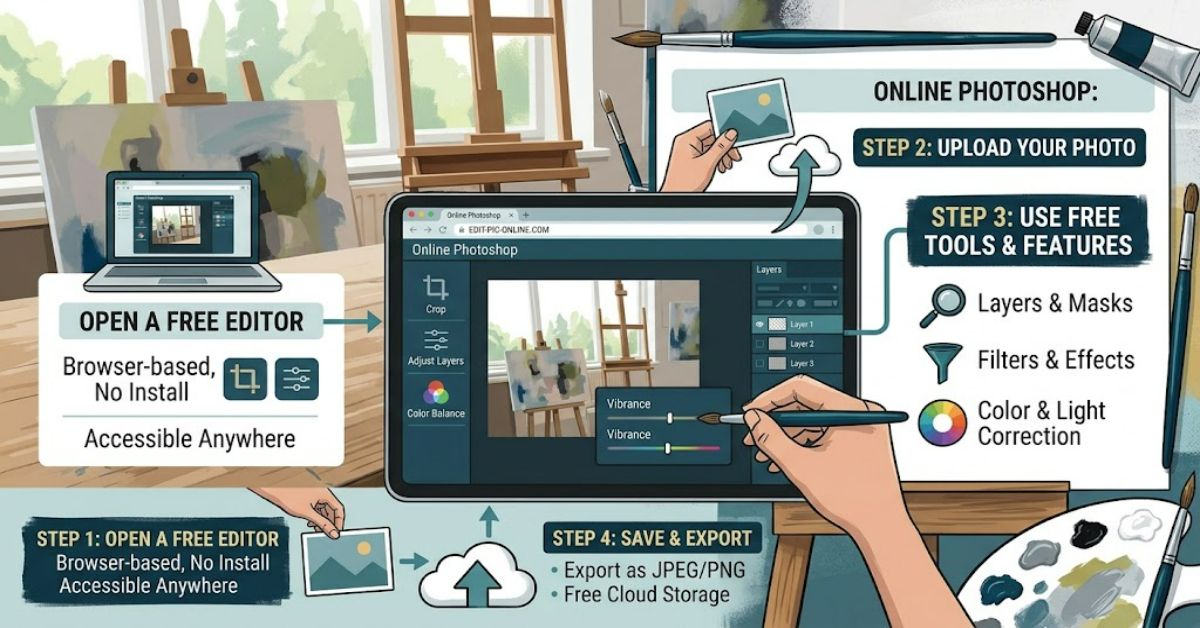
How to Edit a Photo Online
A simple workflow can help you achieve consistent results without spending time on unnecessary effects.
- Open an editor. Choose a reputable browser-based application that supports your image format.
- Import your image. Open a file from your device and keep an untouched original as a backup.
- Crop and straighten. Remove distracting edges and improve the composition before making detailed adjustments.
- Correct the image. Adjust brightness, contrast and colour balance in small steps.
- Make additional edits. Add text, use selections or apply filters only when the project needs them.
- Review at full size. Check for rough edges, unwanted artefacts, spelling errors and inconsistent colours.
- Export the result. Choose an appropriate format and image size for its intended use.
A useful practical distinction is between the editing canvas and the exported file. A picture may look sharp inside the editor but become blurry after being enlarged or compressed. Export settings therefore deserve the same attention as the editing process.
For websites, JPEG or WebP may be suitable for photographs, while PNG can work well for graphics requiring transparency. The best format depends on the image and the requirements of the destination.
Limitations and Privacy Considerations
Browser-based editing reduces installation requirements, but it does not remove every technical limitation.
Large photographs and layered documents can consume substantial memory. Older computers may struggle with complex selections, multiple layers or demanding filters. Closing unnecessary browser tabs and reducing the working image dimensions can help, although neither guarantees smooth performance.
Privacy deserves equal attention. Read the provider’s privacy policy before handling personal or commercially sensitive images. Understand whether files are uploaded, retained, used for service improvement or shared with third parties. Where confidentiality matters, a trusted offline application may be more appropriate.
Another overlooked issue is colour accuracy. A photograph may look different across displays because of brightness settings, screen calibration and colour profiles. If the image is intended for print, confirm its dimensions, resolution and colour requirements with the printer.
The Future of Online Photoshop in 2027
Browser-based editors are likely to continue developing through improved performance, cloud collaboration and AI-assisted editing. Background removal, object selection and automatic image adjustments can make routine tasks faster, although availability and quality vary by application.
Web technologies also allow increasingly capable software to run without conventional installation. However, demanding projects still depend on device memory, processor performance and browser support. Internet access can remain a constraint for cloud-dependent features.
The practical direction is likely to be a mix of browser and desktop workflows rather than the complete replacement of one by the other. Casual users may find online tools sufficient, while professionals may retain desktop applications for specialised production, colour management and complex files.
Key Insights
- Choose by task: Basic edits rarely require the most advanced software.
- Protect originals: Keep an unchanged copy before applying edits or converting file formats.
- Check compatibility: Opening a file does not guarantee that every layer or effect will remain intact.
- Treat privacy as a requirement: Confirm file-handling practices before editing confidential material.
- Inspect exports: Image quality depends on dimensions, compression and format as well as editing skill.
- Match tools to hardware: Complex projects may require more memory and processing power than a browser can comfortably provide.
Conclusion
Online photo editors offer a practical way to crop images, correct colours, add text and create graphics without installing traditional desktop software. Photopea is one option for users who need layers and broader file-format support, while simpler tools may be enough for quick adjustments.
The right choice depends on the work involved. Casual editing prioritises convenience, whereas professional projects may demand stronger colour management, advanced features and predictable file compatibility. Browser performance and privacy policies should also be considered before starting a project.
Good results still depend on sound editing decisions. Keeping original files, making restrained adjustments and checking exported images can prevent common mistakes. For many everyday tasks, a browser-based editor provides a useful balance of accessibility and functionality. More demanding work may still benefit from desktop software, particularly when projects involve large files or specialised production requirements.
Frequently Asked Questions
1. What is the best free online photo editor?
The answer depends on your needs. Photopea offers layered editing and broad file-format support, while simpler browser tools may suit quick crops, filters and text overlays.
2. Can I use online Photoshop without downloading software?
Yes. Browser-based editors such as Photopea run through a compatible web browser, so a conventional installation is generally unnecessary.
3. Can Photopea edit PSD files?
Yes, Photopea supports PSD files. However, some specialised effects, fonts or features may not transfer perfectly, so inspect the document after opening it.
4. Can I remove backgrounds with an online editor?
Many browser editors provide selection tools or automated background-removal features. Availability, accuracy and usage limits vary by service.
5. Is online photo editing safe?
It can be safe when you use a reputable provider and understand its privacy practices. Check how files are processed and stored before editing sensitive images.
6. Can online editors replace desktop Photoshop?
They can replace desktop software for many routine tasks, but demanding projects may still require specialist features, stronger hardware support or advanced colour-management controls.
References
- Adobe. (n.d.). Photoshop on the web. Adobe product documentation.
- Photopea. (n.d.). Photopea documentation and supported file formats. Photopea.
- World Wide Web Consortium. (2024). Web Content Accessibility Guidelines (WCAG) 2.2. W3C.
Methodology
This article draws on general knowledge of browser-based image editing and the documented capabilities of Photopea and Adobe Photoshop on the web. No firsthand software testing, independent performance measurements or expert interviews are claimed. Product features and file compatibility can change, so editors should verify current documentation before publication. Privacy and performance depend on the selected service, browser, device and file type.
Editorial disclosure: This draft was prepared with AI assistance and requires human review before publication, including verification of product features, references and privacy claims.